
How to Install FlixFox APK on Android Phone
Want to know how to install FlixFox APK on Android? Since APK files are installed differently from apps downloaded directly through Google Play, Android may ask you to allow installation from your browser or file manager before you can continue.
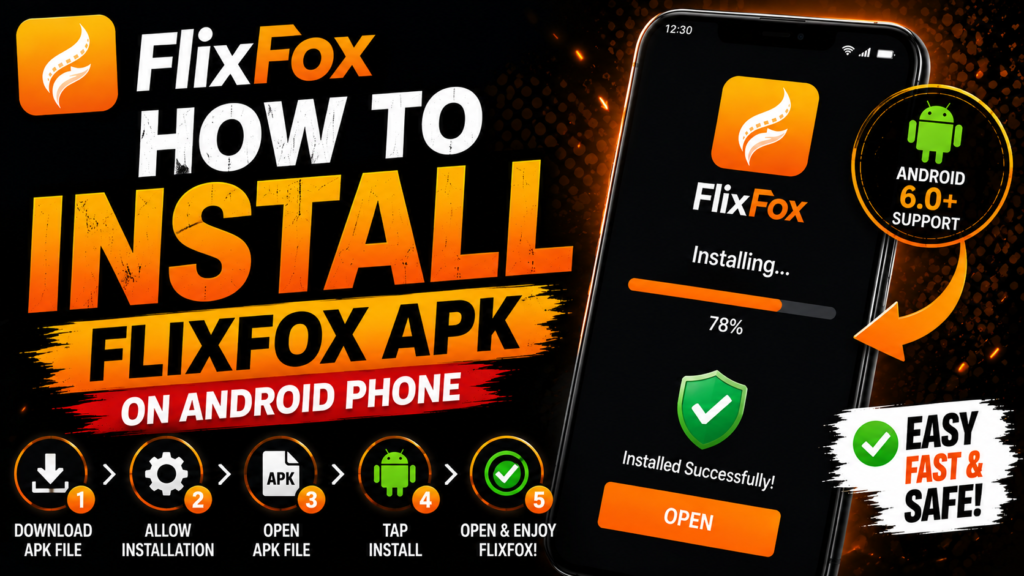
The process itself is straightforward. You need a compatible Android device, enough free storage, the correct FlixFox APK file, and permission for the app opening the APK to request installation.
This guide explains how to install FlixFox APK step by step, what to check before installation, and how to fix common errors such as App Not Installed or a package parsing problem.
What You Need Before Installing FlixFox APK
Before starting the installation, check your phone rather than immediately opening the APK.
The main FlixFox version covered on this website lists Android 6.0 or later as its requirement. You can normally check your Android version through:
Settings → About Phone → Android Version
The exact location may differ slightly on Samsung, Xiaomi, Realme, OnePlus, Vivo, Oppo, Motorola, and other Android devices.
You should also make sure there is sufficient free storage. Android needs space for the APK as well as the installed application and its data.
Before installation, check these basics:
- Compatible Android version
- Sufficient free storage
- Stable internet connection
- Completed APK download
- Access to your Downloads folder
- Permission to install the APK when required
If you haven’t downloaded the package yet, use the main FlixFox APK Download page for the current version information. This installation guide intentionally focuses on what to do after you have the APK.
How to Install FlixFox APK on Android
Once the FlixFox APK has finished downloading, open your phone’s Downloads folder. You can usually access it through the Files or File Manager application.
Find the FlixFox APK and tap it.
Android may immediately display the installation screen. If it does, review the app information and tap Install.
The basic process is:
- Download the FlixFox APK.
- Open Downloads or your file manager.
- Find the downloaded APK.
- Tap the APK file.
- Allow the required installation permission if Android asks.
- Tap Install.
- Wait for Android to complete the installation.
- Tap Open to launch FlixFox.
Do not close the installer while Android is processing the package.
Once installation finishes, the FlixFox icon should appear with your other applications. You can launch it normally from there.
If Android blocks the APK before showing the Install button, you may need to change the installation permission described below.
How to Allow APK Installation on Android
Android restricts applications from installing APK files without permission. This security feature helps prevent apps from silently installing other packages.
When you open FlixFox APK through a browser such as Chrome, Android may display a message explaining that the browser is not currently allowed to install unknown apps.
Follow the Android prompt to open the relevant setting.
Depending on your device, the menu may look similar to:
Settings → Apps → Special App Access → Install Unknown Apps
Choose the browser or file manager you are using and enable Allow from this source.
Return to the APK and start the installation again.
Newer Android versions usually handle this permission per application. This means you can allow your browser to request an APK installation without enabling the same permission for every app on the phone.
Only grant this access to the browser or file manager you are actively using for the installation.
After FlixFox is installed, you can return to the same Android settings and disable the permission again if you don’t regularly install APK files.
Avoid disabling unrelated Android security features just to install one application.
FlixFox APK Not Installing? Try These Fixes
Sometimes Android displays App Not Installed instead of completing the FlixFox installation.
Start by checking the downloaded APK. An interrupted connection can leave you with an incomplete file that Android cannot process correctly. Delete the failed download and obtain a fresh copy if necessary.
Next, check your available storage. If your phone is almost full, remove unnecessary files and try the installation again.
Compatibility can also cause installation problems. If your Android version does not meet the application’s requirements, changing the installation permission will not solve the underlying issue.
Another possibility is an existing FlixFox package. If a different version is already installed, Android may reject another APK when the packages conflict.
If FlixFox is already on your phone and you are trying to install a newer version, you may actually need to update FlixFox APK rather than perform a fresh installation.
For an installation error, check:
- Is the APK fully downloaded?
- Is there enough storage?
- Is your Android version compatible?
- Is APK installation permission enabled?
- Is another FlixFox version already installed?
- Did Android display a specific security warning?
Don’t repeatedly download different APKs from unknown websites just because one installation fails. Identify the error first.
What to Do After Installing FlixFox
After installation, open FlixFox and make sure the application launches normally.
Allow only permissions that make sense for the features you intend to use. You can review them at any time through:
Settings → Apps → FlixFox → Permissions
Next, test the basic functions. Open the home screen, use search, and try loading different content to make sure the installation completed correctly.
If the app opens but behaves slowly, restart it once before changing additional Android settings.
You can also delete the APK installer from your Downloads folder after the application has installed successfully. Removing the original .apk file does not normally uninstall the FlixFox application itself.
If FlixFox refuses to open, crashes, or videos do not play after installation, use the FlixFox Not Working guide rather than repeatedly reinstalling the same package.
It is also worth keeping track of your installed version so you can determine later whether an update is actually required.
How to Install FlixFox Updates Correctly
Installing FlixFox for the first time and updating an existing installation are slightly different tasks.
If FlixFox is already installed and a newer compatible APK becomes available, try installing the newer package over your existing application rather than uninstalling first.
Android may recognize it as an update and display an Update prompt.
This is usually preferable to immediately deleting your existing installation because uninstalling an app can remove locally stored information and downloads.
If Android refuses the update, check the APK version, storage, compatibility, and package source before removing anything.
For complete instructions, see How to Update FlixFox APK to the Latest Version.
You should also avoid downgrading to an older APK simply because an update fails once. Restart the device, verify the APK, and troubleshoot the installation first.
Older releases have their own compatibility considerations, which are covered separately in the FlixFox APK Old Version guide.
FAQs About Installing FlixFox APK
How do I install FlixFox APK on Android?
Download the compatible APK, open it from your Downloads folder, allow your browser or file manager to request APK installation if necessary, and tap Install.
Why can’t I install FlixFox APK?
Common causes include an incomplete APK download, insufficient storage, incompatible Android software, blocked installation permission, or a conflict with an existing package.
Do I need to enable unknown sources for FlixFox?
Android may require you to allow the browser or file manager opening the APK to request installations. On newer Android versions, this permission is generally managed per app.
Can I disable the installation permission afterward?
Yes. If you don’t regularly install APKs, you can return to Android settings and remove the permission after installation.
What Android version does FlixFox require?
The main FlixFox APK information used on this website lists Android 6.0 or later. Device-level compatibility can still vary.
Should I uninstall FlixFox before installing an update?
Not automatically. Try installing the compatible newer APK over the existing application first. Android may recognize it as an update.
Can I delete the FlixFox APK after installation?
Yes. Once installation is complete, the installer file in your Downloads folder is generally no longer required for the installed app to run.
Knowing how to install FlixFox APK correctly can prevent many common Android installation problems. Check compatibility and storage first, use the appropriate installation permission, and pay attention to Android warnings instead of bypassing them. Once installed, keep FlixFox updated and troubleshoot individual problems before considering a complete reinstall.
